Runtime Flow blog (Understanding a control flow in a running .NET application)

June 25, 2010

Runtime summary

Filed under: Uncategorized — Sergey Vlasov @ 11:35 am

The next version of Runtime Flow introduces the Runtime Summary window:
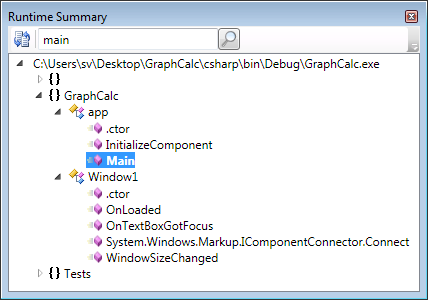
Runtime Summary window

Runtime Summary window


It lists all classes and functions that were used during a program run organized by modules and namespaces. All elements are alphabetically sorted. New functions are added in real time and removed by the Clear command the same way as in the Runtime Flow window.

Search field allows you to search for namespaces, classes and functions. Each new search continues from the selected node. The Locate in flow toolbar button finds the selected class or function in the Runtime Flow window. Press the Locate in flow button again to find the next occurrence.
June 14, 2010

Runtime Flow v1.0.6 released

Filed under: Uncategorized — Sergey Vlasov @ 7:11 am

Runtime Flow v1.0.6 released:

  • Added usage of the command’s parent directory when working directory is empty in the Customized run dialog.
  • Added ability to use quotes in paths in the Customized run dialog.
  • Added filtering for control characters in parameters.
  • Added bring into view for the selected item after collapse.
  • Reduced memory usage during monitoring.
  • Expanded parameter string length to 260 characters.
  • Removed <Module> from native C++ class names.
  • Fixed exception handling for dynamic methods.
  • Fixed incorrect ending for long function names.

May 29, 2010

Demo screencasts

Filed under: Uncategorized — Sergey Vlasov @ 6:15 am

I’ve recorded two screencasts showing Runtime Flow in action.

May 19, 2010

Runtime Flow v1.0.5 released

Filed under: Uncategorized — Sergey Vlasov @ 8:09 am

Runtime Flow v1.0.5 released – added function parameters and return values monitoring, added the Customized Run dialog, added support for the relative output paths in the Visual Studio build options.

Customized monitoring

Filed under: Uncategorized — Sergey Vlasov @ 6:56 am

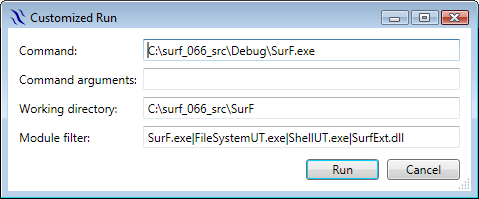
I’ve added the Customized Run dialog that allows to directly adjust parameters for the running executable and module filter:

The Customized Run dialog

The Customized Run dialog


For example, you can add to the module filter the .NET framework dlls to get deeper understanding of what is going on:
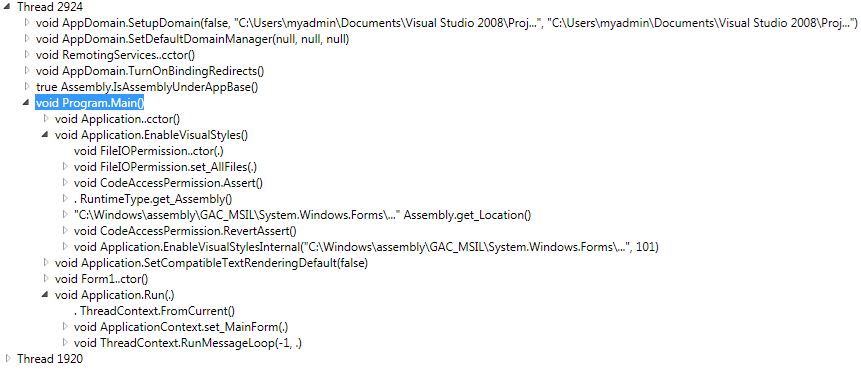
Default monitoring results for a WinForms application

Default monitoring results for a WinForms application


Using the rt_test.exe|System.Windows.Forms.dll filter

Using the rt_test.exe|System.Windows.Forms.dll filter


Using the rt_test.exe|mscorlib.dll filter

Using the rt_test.exe|mscorlib.dll filter


The empty filter allows monitoring for all modules:
Using the empty filter to monitor all modules

Using the empty filter to monitor all modules


The customized run settings are not currently saved when you exit from Visual Studio. I’ve not yet decided what is the best way to store it (globally, per solution, per project, per build configuration) and how these custom settings should interact with the debug settings in a Visual Studio’s solution used by the Run command.

May 17, 2010

Monitoring function parameters and return values

Filed under: Uncategorized — Sergey Vlasov @ 3:28 pm

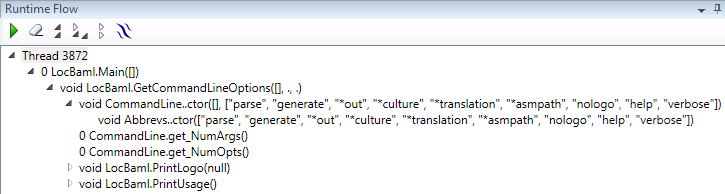
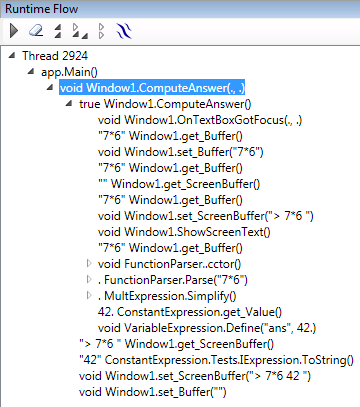
I’ve added ability to catch and display function parameters and return values in Runtime Flow. Currently only primitive types such as bool, int, char, double and string are supported plus one dimensional arrays containing such types. Objects of other types are displayed as dots:

LocBaml startup

LocBaml startup


Computing an answer in GraphCalc

Computing an answer in GraphCalc


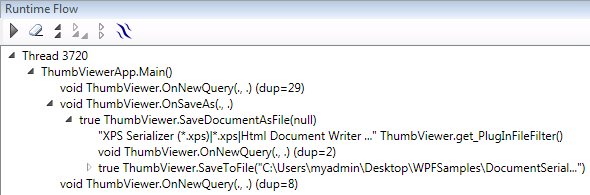
Strings longer than 50 characters are trimmed to not overrun the screen:
Saving a document in Thumbnail Viewer

Saving a document in Thumbnail Viewer


When number of elements in an array is more than 10, the first nine elements are displayed + number of skipped element + the last element:
A long strings array in WPFNotepad

A long strings array in WPFNotepad


When an exception occurs the function return value is displayed as Ex:
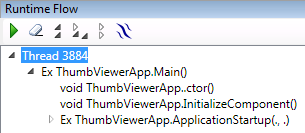
Unhandled exception in Thumbnail Viewer

Unhandled exception in Thumbnail Viewer


It’s technically possible to display data in objects of more complex types too and I’ll most probably return to monitoring of function parameters in next versions of Runtime Flow.

May 3, 2010

Runtime Flow v1.0 is released

Filed under: Uncategorized — Sergey Vlasov @ 9:07 am

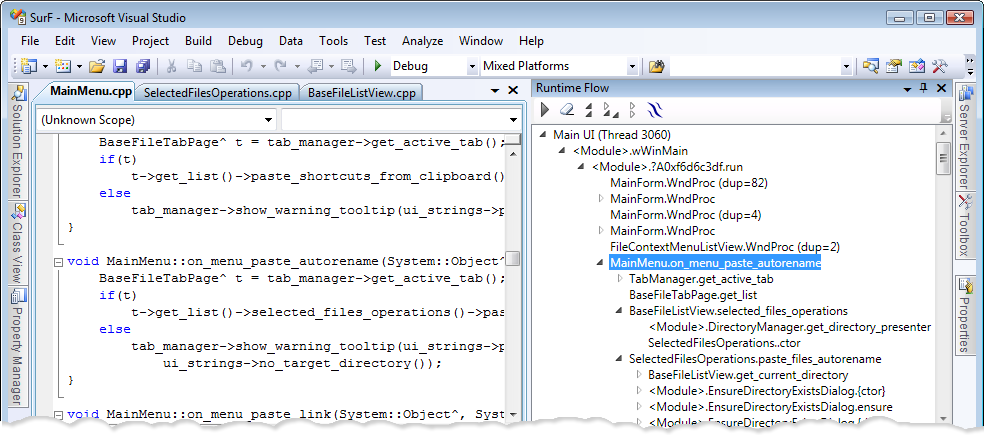
Runtime Flow integrated with Visual Studio 2008

Runtime Flow integrated with Visual Studio 2008


Runtime Flow in real time monitors function calls in a running .NET application and shows them in a control flow tree. The main purpose of the tool is to help developers better understand interworking in a large .NET codebase specific for a selected use case.

Runtime Flow v1.0 integrates with Visual Studio 2005/2008 and monitors .NET 2.0 – 3.5 desktop applications. Both x86 and x64 platforms are supported.

Support for web projects, Visual Studio 2010 and .NET 4.0 is planned.

Visit Runtime Flow home page, read the Quick Start guide and explore your own applications with the fully functional 60 day trial.

April 19, 2010

Runtime Flow v0.8.5 is released

Filed under: Uncategorized — Sergey Vlasov @ 3:19 pm

Runtime Flow v0.8.5 is released – added support for x64 applications, added support for Visual Studio 2005 (except for C++ startup projects).

April 11, 2010

Runtime Flow v0.8.0 is released

Filed under: Uncategorized — Sergey Vlasov @ 1:19 pm

Runtime Flow v0.8.0 is released – added tree expand and collapse commands, added display of thread names, added ability to monitor multiple modules, added the About dialog.

Multiple modules monitoring

Filed under: Uncategorized — Sergey Vlasov @ 12:26 pm

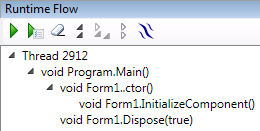
An application usually consists of the main executable and several additional dlls. Runtime Flow now collects all exe and dll outputs from a solution as a module filter and allows you to monitor function calls in all these modules:

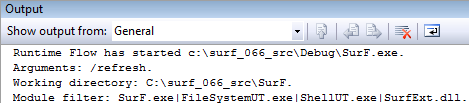
The filter for SurF modules

The filter for SurF modules

« Newer PostsOlder Posts »

Blog at WordPress.com.